Tuesday, 24 March 2026
Updated on 20 October 2026
Switching from lexoffice (German accounting software) to Bleno in 5 minutes
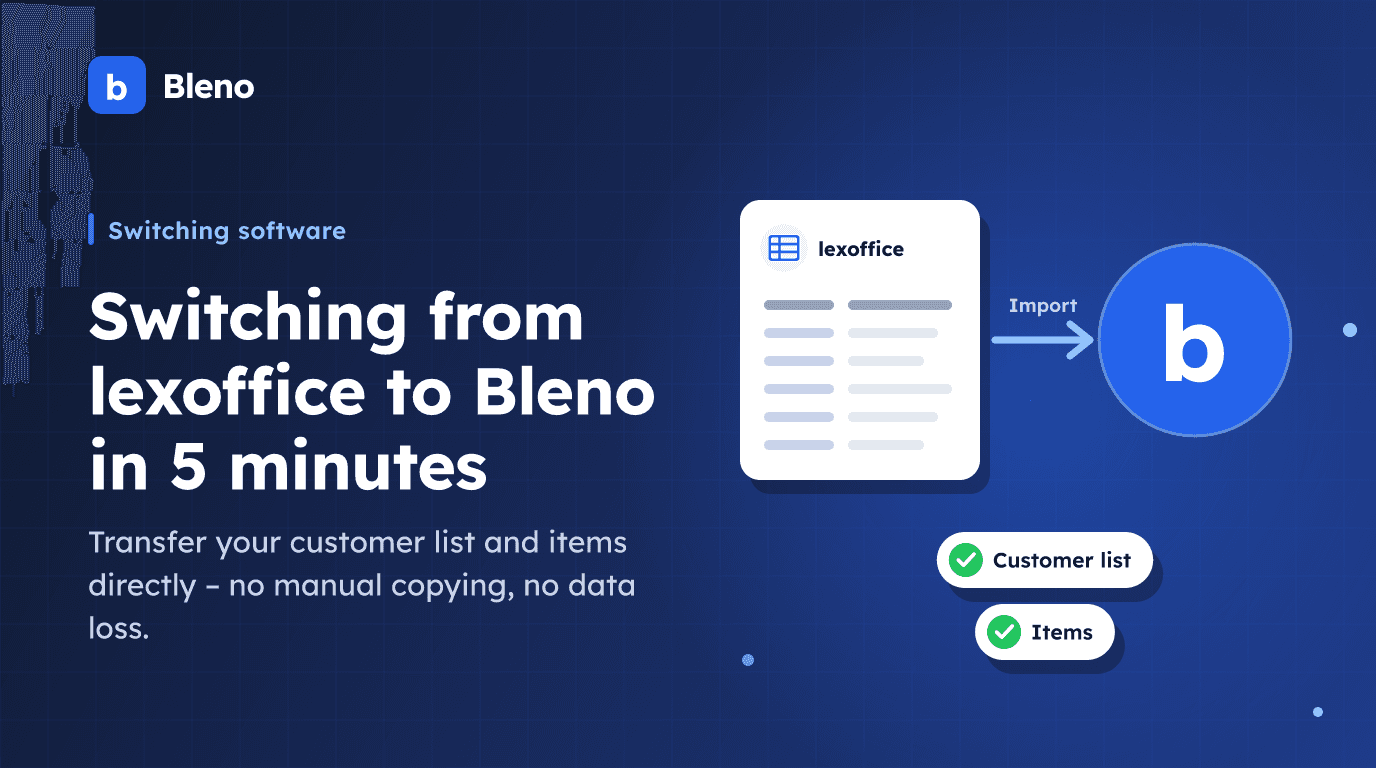
You have decided to switch from lexoffice, the German accounting software, to Bleno – and are now wondering how much work that means. The short answer: less than you think. Bleno has a direct import for lexoffice files from Germany, with which you transfer your customer list and items or services in a few clicks. You can also read why the switch is worth it in the comparison lexoffice alternative for trades.
This article shows you step by step how the switch works.
What is imported?
Bleno imports from lexoffice (German accounting software):
- Customers – company name, contact person, address, email, phone, customer number, VAT ID
- Items & services – description, unit, net selling price
This data forms the basis for quotes, invoices and project management in Bleno. You do not need to import invoice PDFs or bookings – they stay archived in the German accounting tool.
Step 1: Export your data from lexoffice (German accounting software)
Export the customer list
- Log in to your account there
- Open “Kontakte” (contacts) – or, depending on the version, “Kunden” (customers)
- Click “Exportieren” (export) or “Datenexport” (data export)
- Choose the CSV format
- Download the file (e.g.
kontakte.csv)
Export the item list
- Open the “Artikel” (items) area there – or products/services
- Click export → CSV
- Download the file (e.g.
artikel.csv)
Note: Depending on the version of the German accounting tool, the menu items may differ slightly. The export is usually found under “Einstellungen → Datenexport” (settings → data export) or directly in the relevant list view.
Step 2: Import into Bleno
- Log in to Bleno (German interface)
- Open “Einstellungen” (settings – the gear icon in the sidebar)
- Select the “Datenimport” (data import) tab and click the import button for lexoffice files from Germany
- Upload your CSV file (drag & drop or select a file)
- Bleno automatically recognises whether it is a customer list or an item list
- You see a preview with the first entries and a summary:
- How many records will be imported?
- How many already exist?
- Choose whether existing entries should be skipped or overwritten
- Click “Kunden importieren” (import customers) – done
The import runs in seconds. Afterwards your customers appear directly in Bleno's customer management.
For items: Upload your item list in the same dialog. These are imported as line item templates and are available straight away when you write quotes.
What happens to duplicates?
If you have already created some customers manually in Bleno: no problem. Bleno recognises duplicates by email address and shows you before the import how many entries already exist. You then decide:
- Skip – existing customers stay unchanged, only new ones are imported
- Overwrite – existing entries are updated with the data from the German accounting tool
After the import: what comes next?
As soon as your master data is in Bleno, you can get going straight away:
- Write your first quote – select a customer, add items from your imported templates, send the PDF
- Invite your team – invite employees by email or text message
- Create your first projects – connect sites, jobs and time tracking
If you have questions about the import or something does not work as expected, write to us – we will help you personally with the switch.
Conclusion
Switching from lexoffice (German accounting software) to Bleno is technically not a big effort. With the direct CSV import, the data transfer takes a few minutes. What follows: a tool that combines quotes, invoices, projects, time tracking and site documentation in one app – instead of several separate tools.
What else helps with the switch apart from the import – checklist, old documents, setup – is described under Switching & setup.
Try it free for 14 days, all functions, no credit card: Get started.